
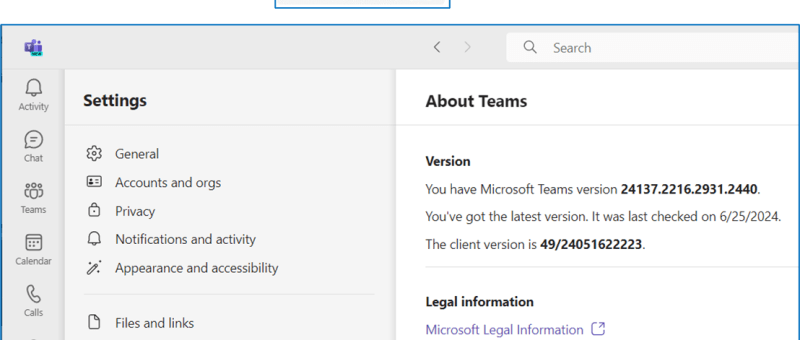
The newer version of MS Teams is provided within the MS Store deployment process using an MSIX file. While the MSIX file format is supported on MS Windows Server 2019, the MS Store is not. EOA of MS Teams (Classic) is expect so we need to move to newer release.
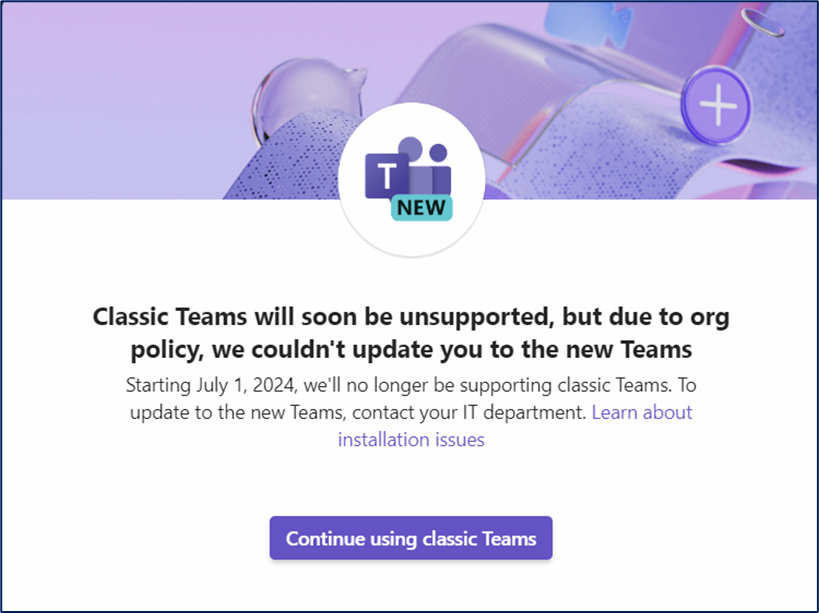
If you use MS Windows Server 2019 for your team as remote-desktop (RDSH) session hosts with multiple users or use a server as a workstation, this blog entry may be of value to you.
While attempting to use the auto-upgrade feature in MS Teams, we would see a failure on our current workstation/server of MS Windows Server 2019. The MS Teams upgrade UI error indicated this was a org/group policy related issue. A MS troubleshooting tech doc for MS Team upgrade indicated this was a group policy and where to check with gpedit/ms registry. Unfortunately, this was a false lead. The install logs for MS Teams were looking for two (2) flags to be true: enggCompleteFlag, isAboveWin10Vibranium (Win2019 OS returned false for the aboveWin10 flag)
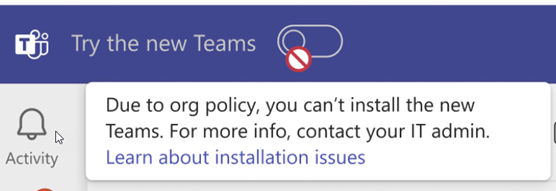
After reviewing many MS tech notes, we identified the offline installer to use. This tool provides an exec process to check if your OS is ready to use the new version of MS Teams. We failed this test, and the error message was not helpful in explaining why.
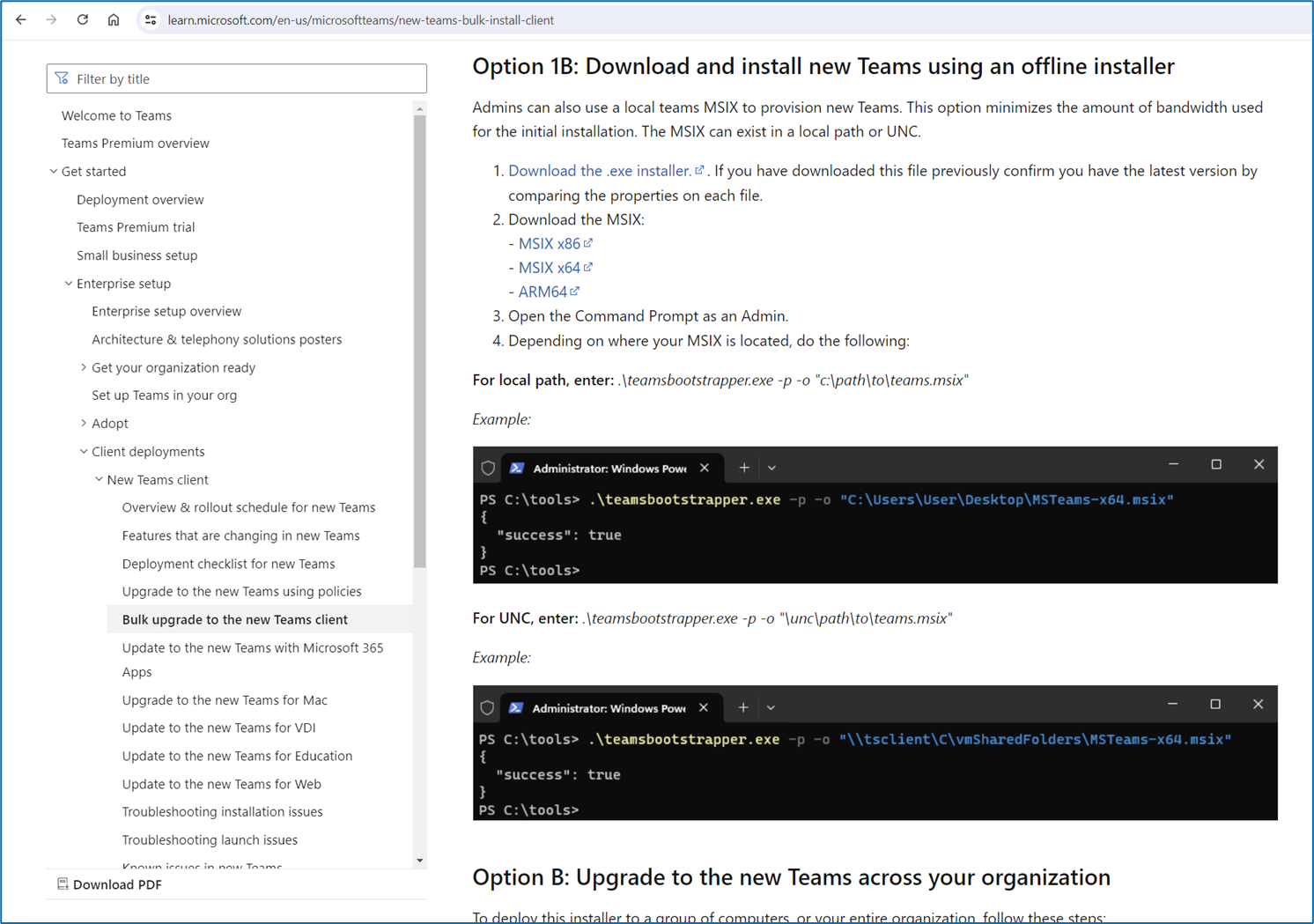

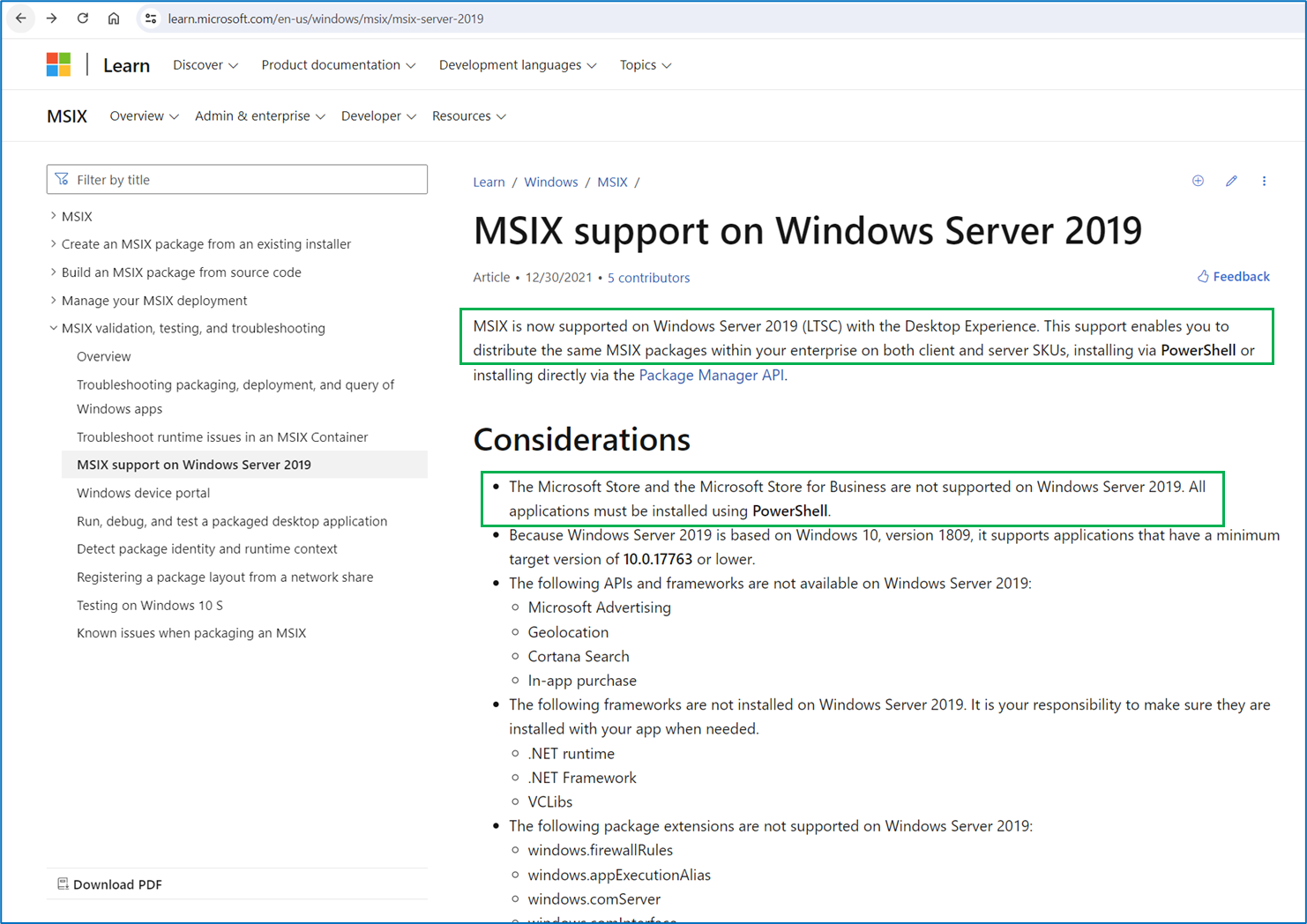
Determined not to be blocked, we continued our research and confirmed the MSIX support for MS Windows Server 2019. What caught our eye were the two (2) statements that we needed to install it via MS Powershell and that MS Store is not supported on MS Windows Server 2019.
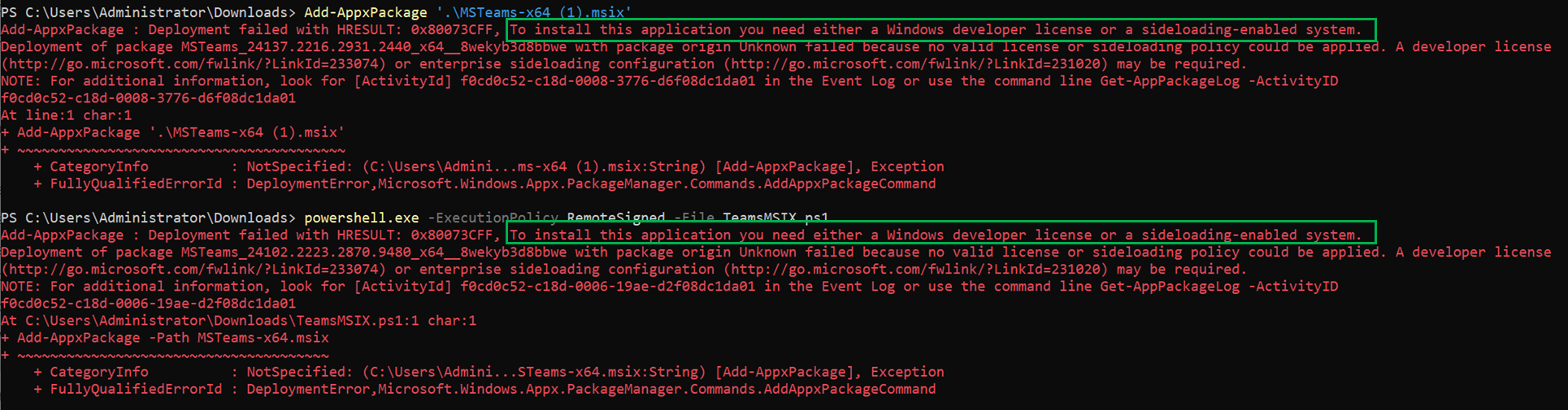
We confirmed which PS command, Add-AppxPackage, was needed to install the MSIX package via MS Powershell.

While the installation failed, this direct attempt returned some helpful information from the error message. We were no longer being blocked on OS type, but we were being checked via a security check for sideloading.
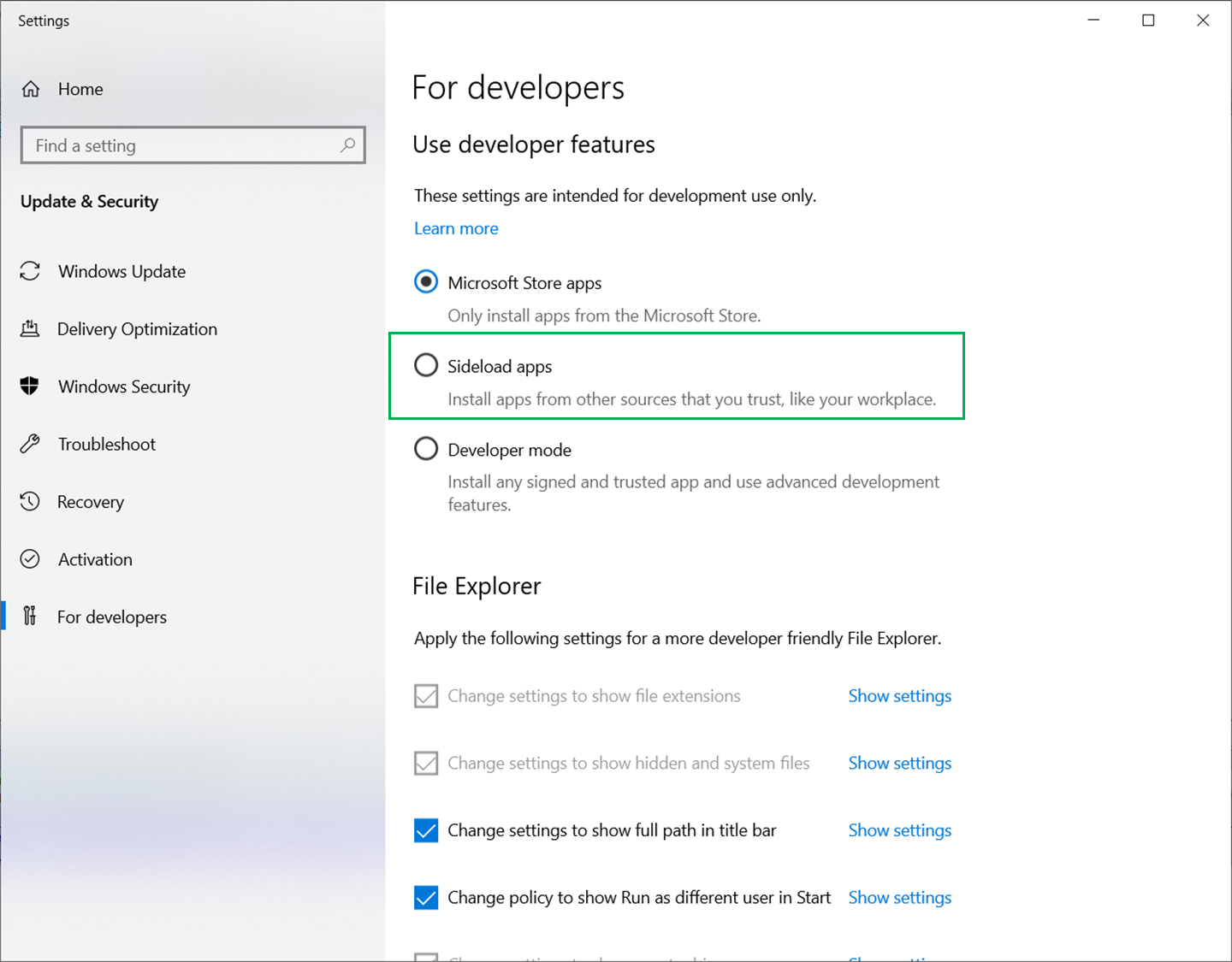
We reviewed the “sideloading” feature via MS Windows Server 2019 to confirm our understanding, then we enabled “sideloading” feature of MS Windows Server 2019.

Open Windows Settings and navigate to the System > For developers page. Enable the “Sideload apps” radio button.
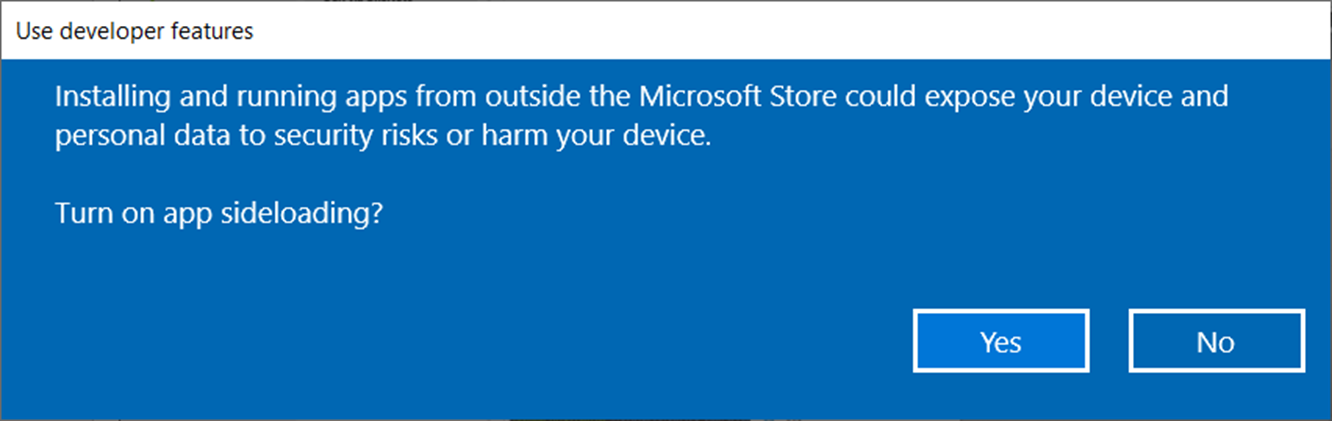
Finally, we could add the MSIX package via MS Powershell, and see the installation response.

1. Create ps1 file with the contents:

Add-AppxPackage -Path MSTeams-x64.msix

2.  Execute the ps1 file as shown below:

powershell.exe -ExecutionPolicy RemoteSigned -File TeamsMSIX.ps1
Now, we have full access to the newer MS Teams on MS Windows Server 2019 OS.

Hopefully, these steps will assist others.
This was an example of how generic error messages can mislead and be time consuming to resolve the root issues.