One of the primary advantages of using a passkey (certificate-based-authentication) over passwords, is to defeat the man-in-the-middle / phishing attacks.
You know those emails that your receive, that pretend to be from your bank, your CPA, or Microsoft/Google for your email. They have intentionally malformed URL addresses to trick you to enter your password into their own site, that have stolen vendor images to make it look "real". Well, if you are tired or busy, and not paying attention, ouch, you have just put yourself at major risk by clicking that link and entering your credentials.
Lets stop this nonsense & risk now. Help your friends and family members as well.
Why this works? The magic is the industry has agreed on a "standard" to use public-private key functionality and make it more friendly for end-users to use with their laptop's browsers and phones. Since this "standard" is fairly new, you will only see a few banks using it. I have only one bank of three using it. It is being rolled out at most global companies, e.g Google, Microsoft, etc.
How this works? The passkey's private key remains on your device (phone/workstation/physical security key/tablet), the passkey public cert is ONLY on the one site you registered at. Only the correct public cert can verify the private key's signature, making interception useless. Yea us!
Please be aware that passkeys (as a process) are still relative new for global usage, and this functionality is being rolled out. There are challenges that are being address for backup/replication but don't let that stop you from adoption to enhance your own personal security.
The good:
I had great luck with using a physical security USB device, the Yubikey 5C NFC , for passkey(s), ECA certificates, and standard one-time token(s) (touch). Also, if I used an app or website on my mobile phone that supported passkeys, I had no challenges with registration and using passkeys with same phone. This was all good. I thought I should be able to do this same passkey registration with my laptop with any browser or integrate with my mobile phone as is mentioned in many online sites.
The bad:
However I became very frustrated. I wanted to use passkey(s) on my laptop/workstation natively or along with a mobile phone. Why was this so hard? I wanted this functionality for my email and for any other online work while I was sitting at my desk. I did not want to use the small screen on the mobile phone to conduct my business.
I would see these types of scary error messages when I attempt to register a passkey on my workstation.
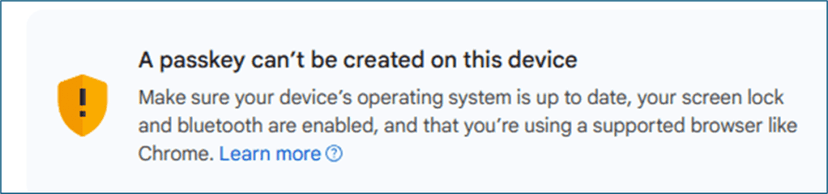
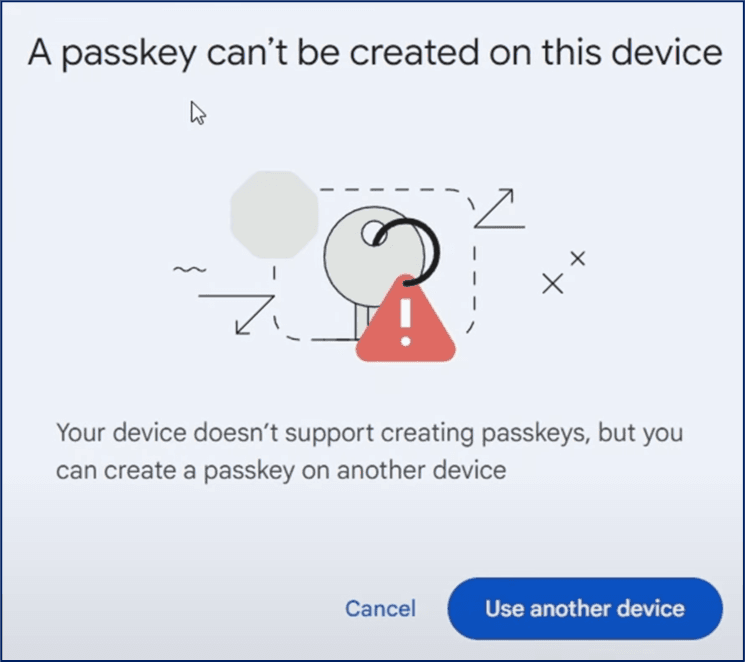
I had to dive deeper and see why I had an issue with my workstations. An why with a slight change, I will continue to use my mobile phone or Yubikey for passkeys.
Testing Passkey (aka FIDO2) Functionality:
Pretest your workstation to see if you can use passkeys. Use the below site to test: https://webauthn.io/ Enter a random string in the edit box, click Register, then click Authenticate. If you have no issues, you are well on your way to using passkeys.
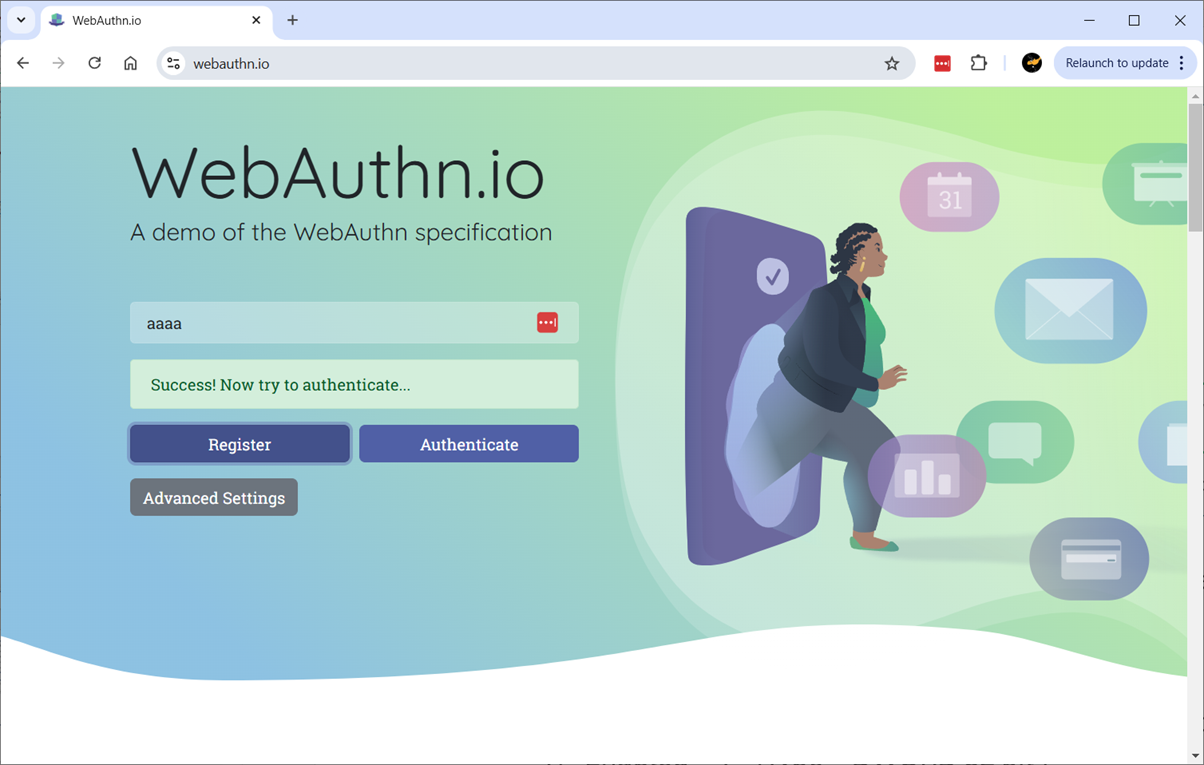
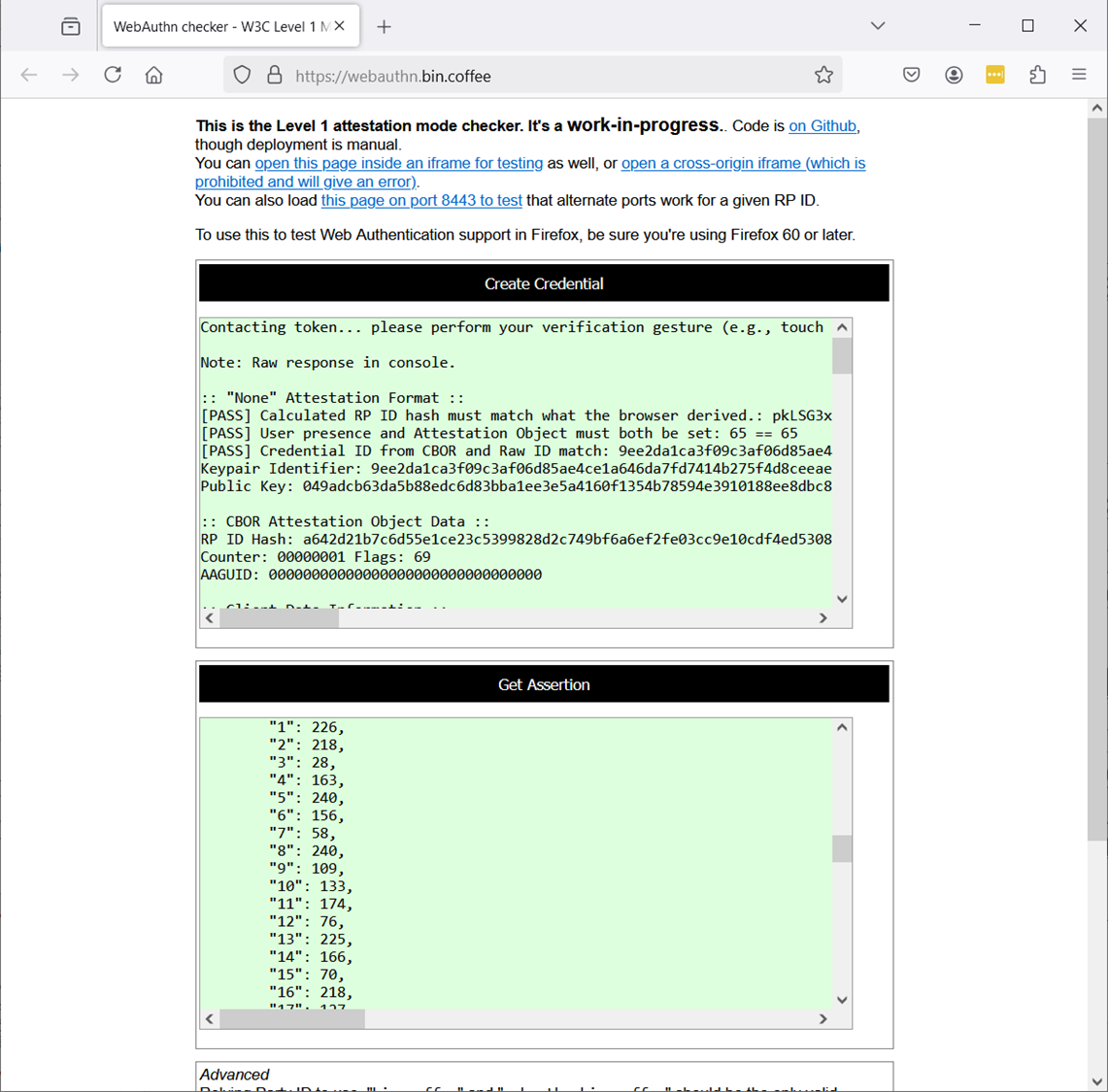
With the Firefox browser, you can try this second site. https://webauthn.bin.coffee/ It is a deeper review but shows a similar process with "Create Credential" and "Get Assertion". If this passes, please continue.
Hardware TPM 2.0
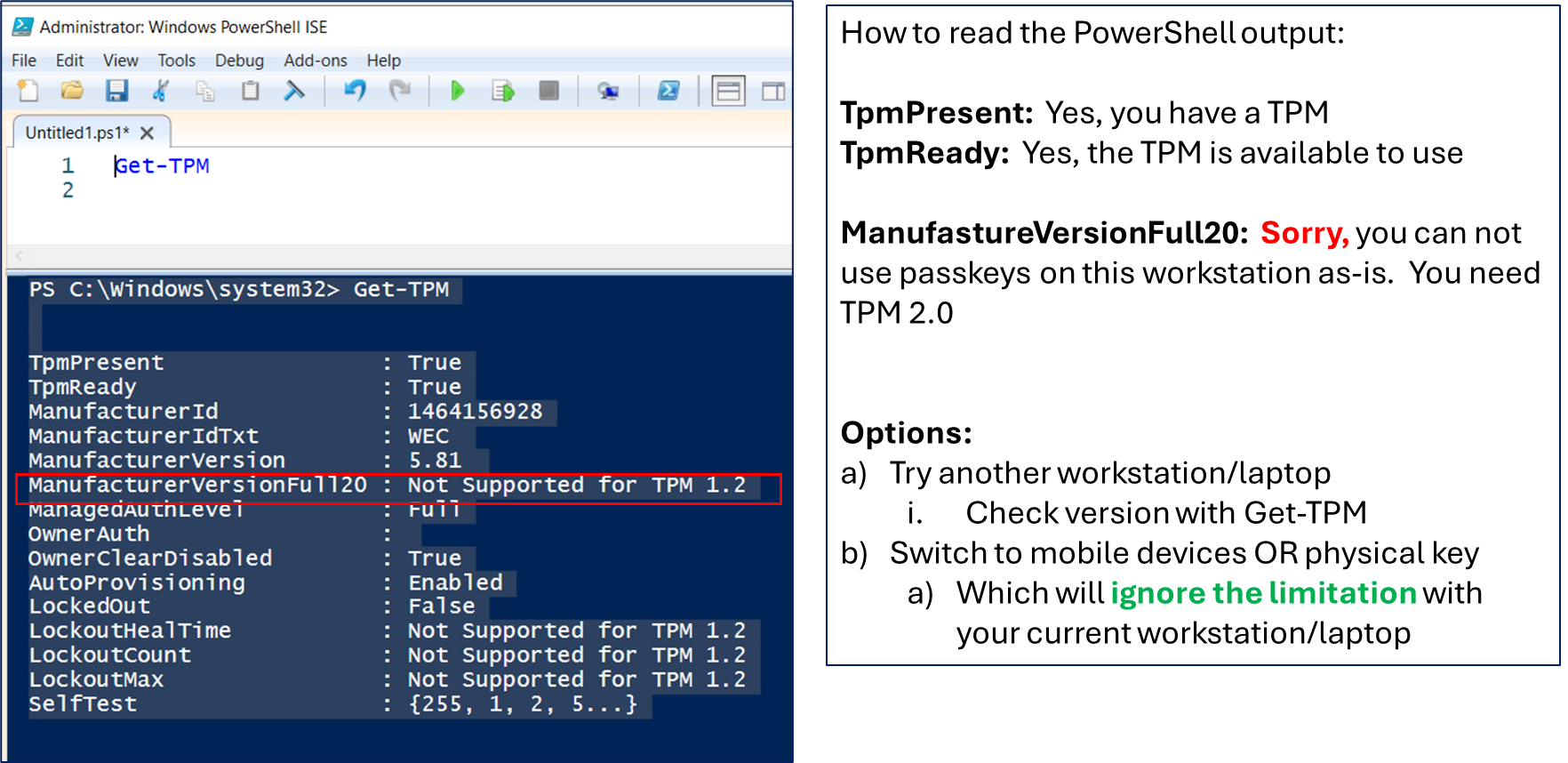
My first failure, was due to using an older laptop/workstation. You must have a relatively new laptop that has TPM 2.0 in the BIOS. Unfortunately a BIOS upgrade will not resolve this. Passkey(s) require the newer hardware security functionality within TPM 2.0. Time to upgrade your laptop.
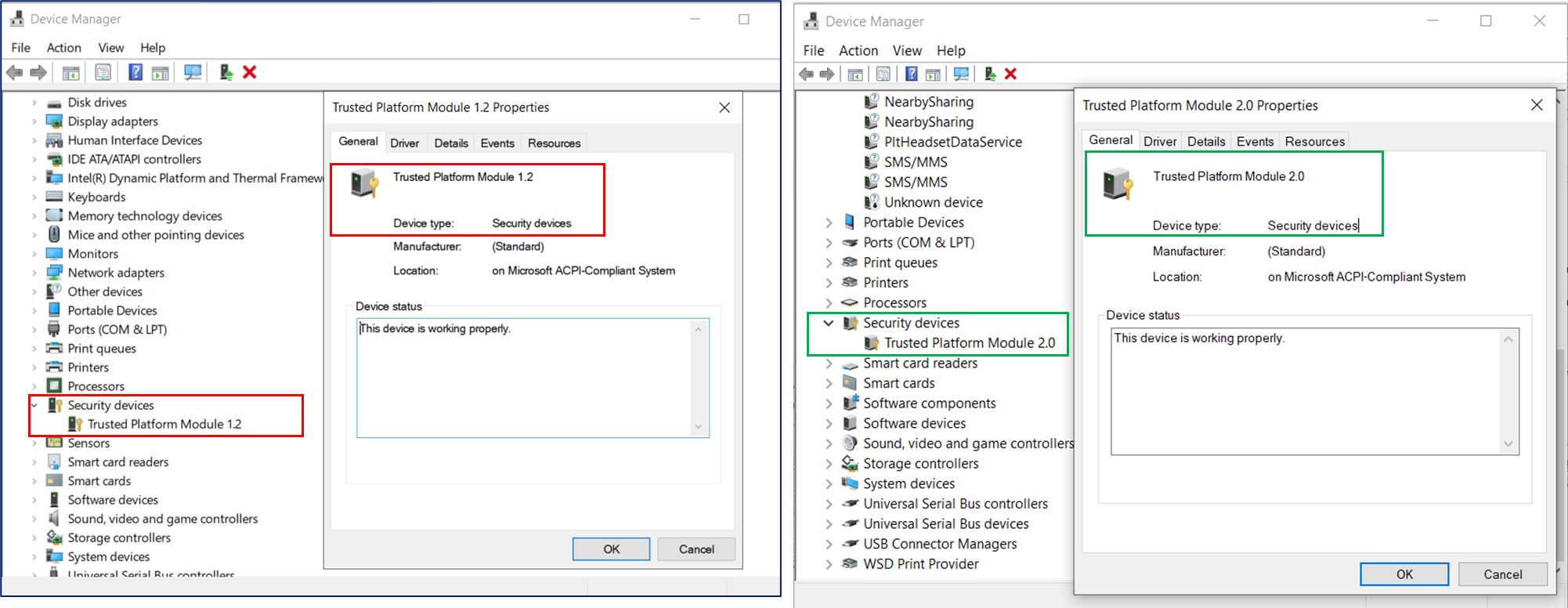
Check your version with MS Windows' Device Manager or PowerShell command line, and type Get-TPM
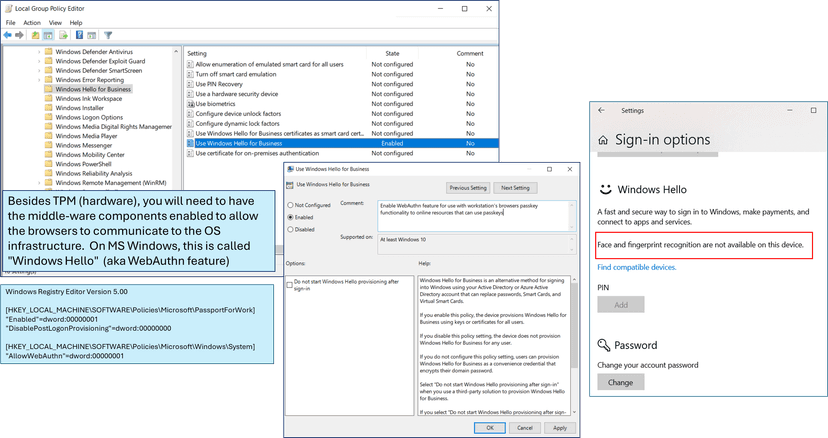
My second issue was the OS I was using on my updated laptop/workstation that had TPM 2.0. Passkey architecture requires supported hardware (to store the key securely), middle-ware management software, and user interaction (via browser or other). For example, MS Windows OS version 10/11's middle-ware management software is called "Windows Hello" (aka WebAuthn) that will interact between the browser (user) and the hardware (where the passkey is stored).
However, on my newest laptop, I am running MS Windows 2019 Standard OS, as I find it more stable for testing solutions. On this OS, "Windows Hello" feature set is not fully enabled. While I could enable it via MS Registry entries or a group policy (see below), I decided to stop here, and focus on the mobile phone authentication for the workstation. The underlying OS functionality will work as-is with passkeys on mobile phones, but there was a hitch.
Mobile Phone
As I reviewed through the online documentation and specs, it is clear that with a mobile phone (acting as the passkey storage with a built-in security chip) should be able to communicate to any workstation (public/private) and provide the passkey over Bluetooth when asked. However, seeing is believing, and I only was successful with passkey registration on my private workstations only after I trusted the mobile phone with the workstation.
Typically, on a workstation with MS Windows, you may use Bluetooth for keyboard/mouse/audio headsets. You may also use it for file transfer between the workstation and other devices, e.g. mobile phones. The FIDO2 architecture uses Bluetooth as well, but with their own protocol.
Before I trusted the phone with the workstation, I would see attempts to use my mobile phone from the workstation, but it would eventually fail. Perhaps there is an automated features that i needed to enabled that would allow this. I enabled Bluetooth trust between the mobile phone and the workstation prior to trying again.
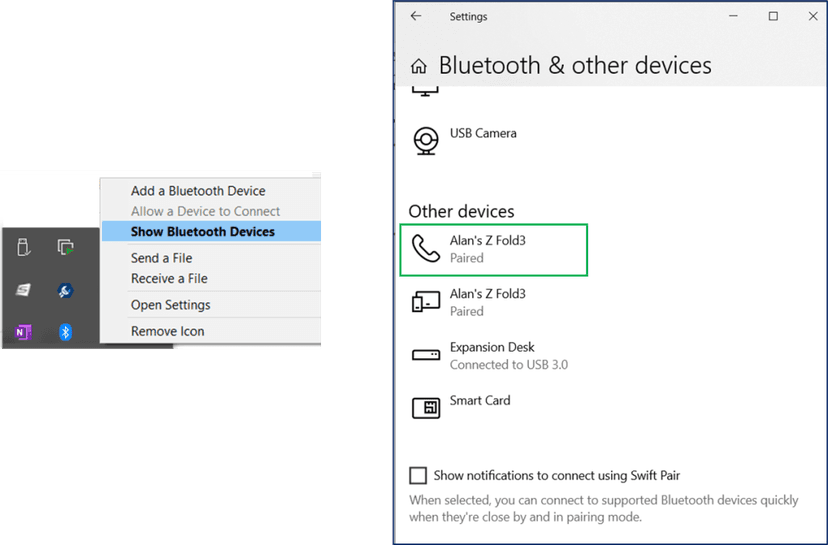
Success!
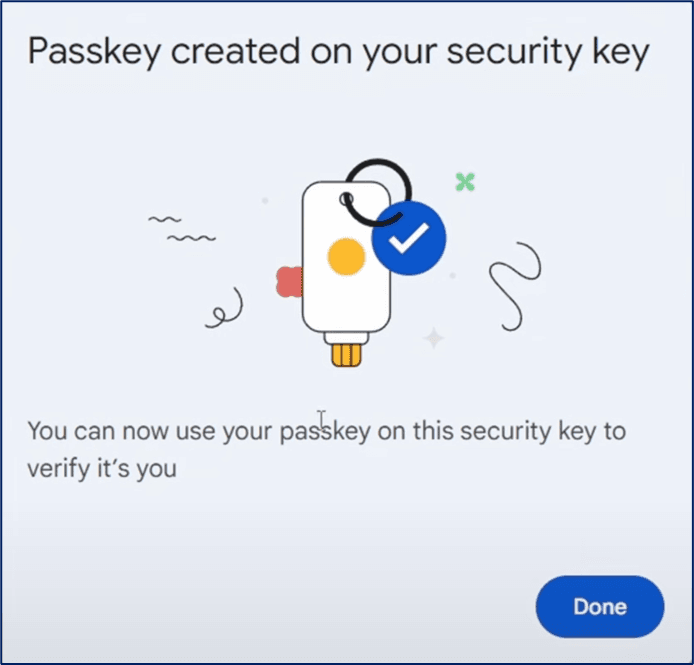
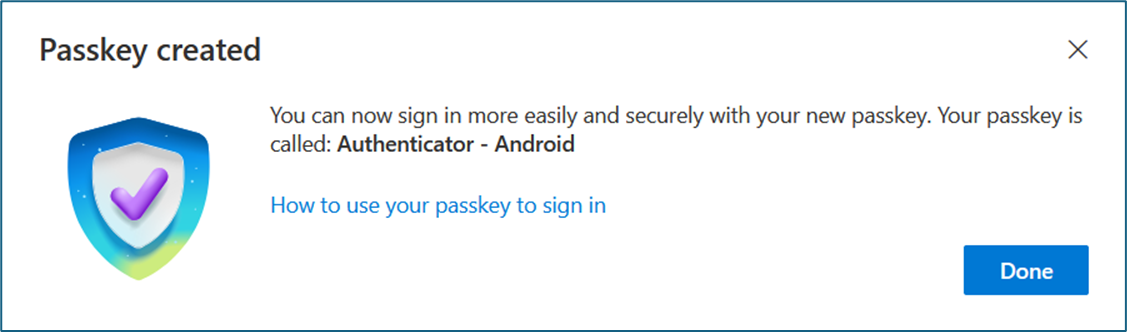
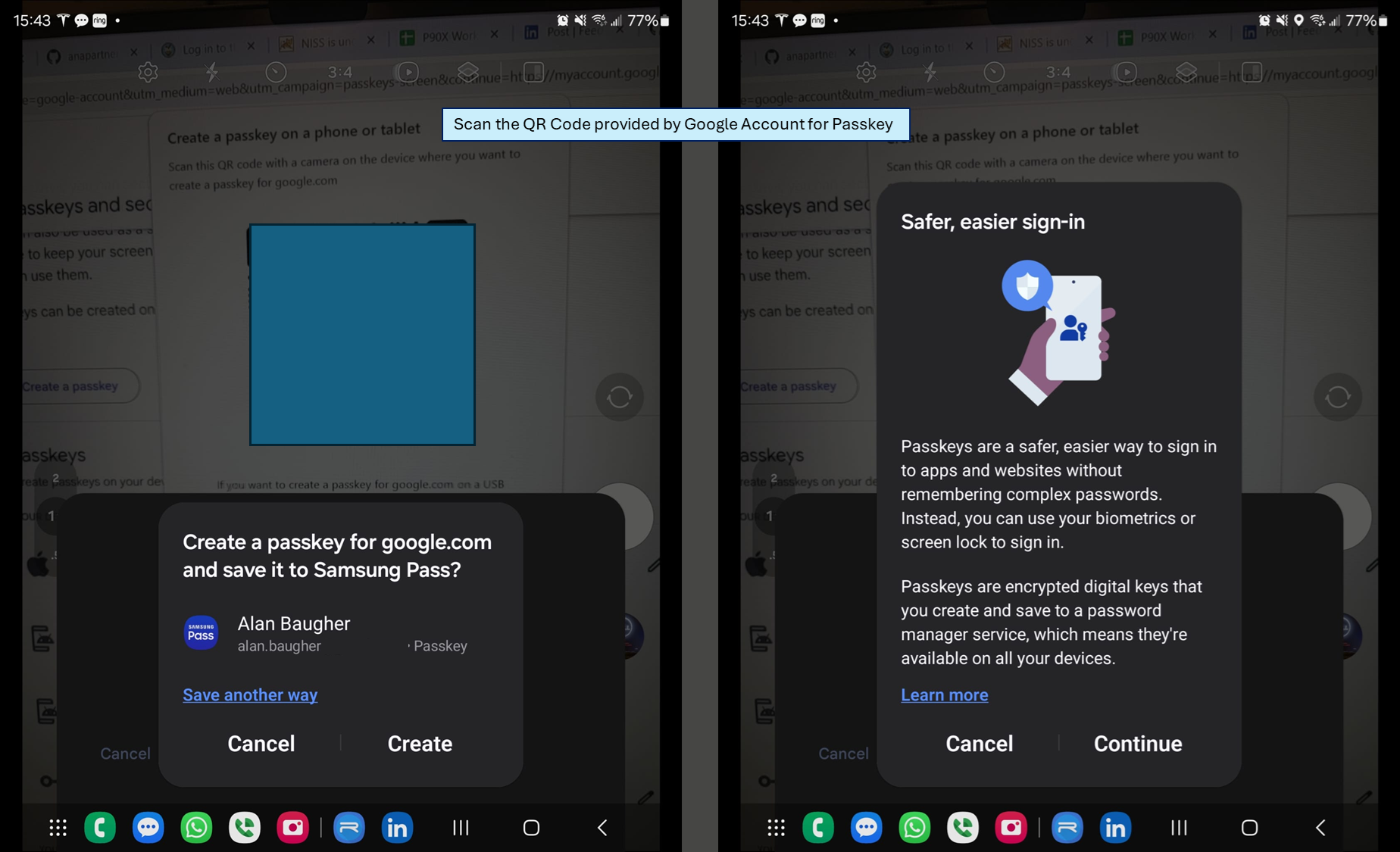
If the application or website offers passkey(s) as authentication, please go ahead. Ignore any error/warning messages that may say your "device" (aka workstation/laptop) does not support passkey. Select "another device" if it is offered, then select your mobile phone. You should be able to progress and register a passkey on your phone.
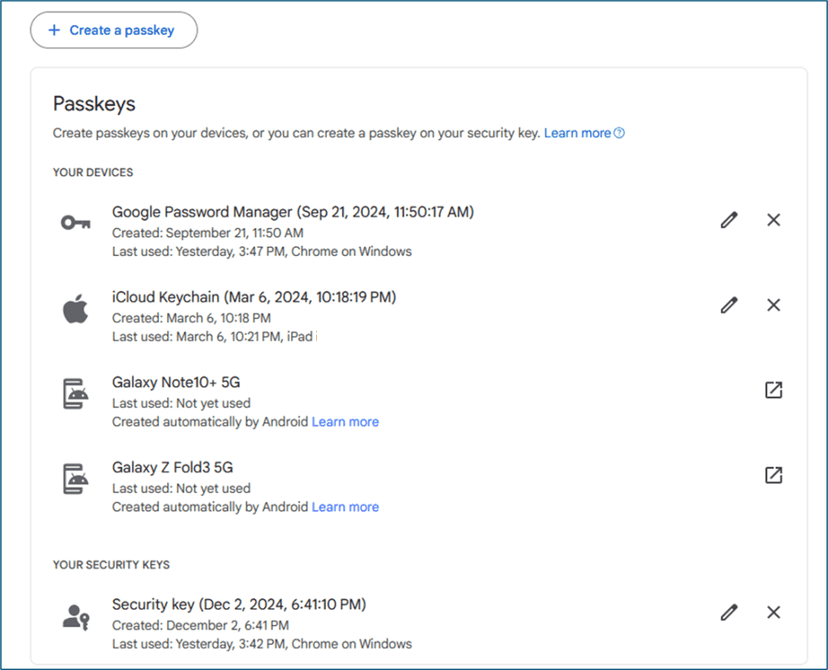
Below are images from the phone, that are generated due to the Bluetooth "trust" with the workstation, when I select a passkey to be generated and stored on my mobile phone.
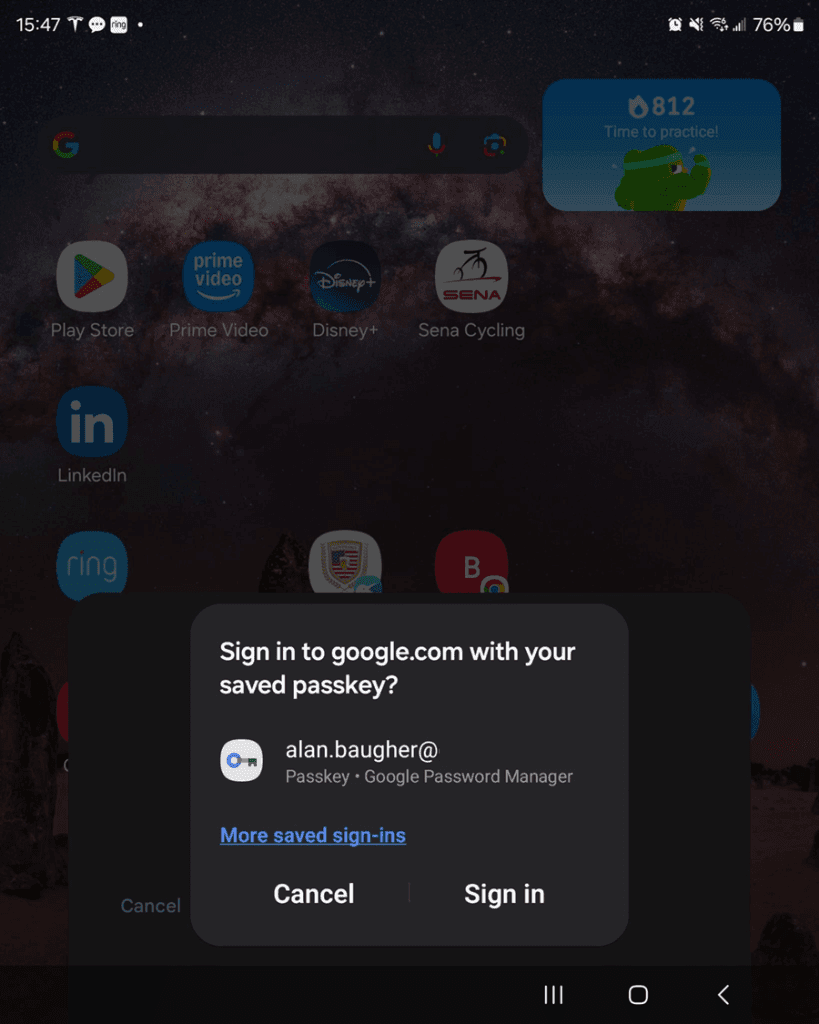
Now that your passkey is registered, you should be able to use any public workstation or other with your mobile phone, and not worry about your password being compromised. :-)
Take-aways:
- Use passkey(s) as your primary authentication (if the website or app allows it)
- When using your mobile phone, ensure Bluetooth is enabled and trusted to your non-public workstation (to assist with initial passkey registration)
- Consider using a physical security key with PIN, to hold the passkeys. Ensure this device has USB-C and/or NFC to allow you to use it with any modern workstation/ipad/mobile phone.
- Use an authentication app (MS/Google/LastPass/Yubikey/Symantec VIP/RSA Auth/etc.) as secondary authentication option with or without your password .
- Best if the site allow you to use only an Authenticator but most sites will require a password as 1st credential (at this time/ not perfect but better than just password alone).
- Please note that you may be able to have as many authentication app as you like on some websites.
- Use your password and SMS text as a third option for authentication to have a minimal of two (2) factor authentication. This is the minimal two (2) factor. We want better.
- If you have only password authentication, use some form of password management tool, e.g. KeePass, LastPass, 1Password, etc. and make the password as long as possible, e.g. 100 characters. Let's see someone brute force that. See below table of examples
| Tool | Features | Strengths | Concerns | Best For | Pricing |
|---|---|---|---|---|---|
| KeePass | Open-source, offline storage, extensive plugins, no cloud dependency. | Highly secure, customiz-able. | Manual syncing for multiple devices. | Privacy-focused and advanced users. | Free (open-source). |
| Text File Secured by VeraCrypt | Open-source, offline storage, encrypted container for storing sensitive text files, open-source encryption tools. | Fully offline, highly secure. | Manual password entry; no automation. | Privacy-focused users. | Free (open-source). |
| LastPass | Cloud-based vault, password sharing, MFA, dark web monitoring. | User-friendly interface. | Previous data breaches. | Personal and family use. | Free version; & Premium version |
| Dashlane | Cloud-based vault, Password generator, VPN, dark web monitoring, autofill for payment details. | Advanced security features. | Expensive compared to others. | All-in-one solution seekers. | Free version (limited); & Premium version |
| 1Password | Cloud-based vault, Travel mode, item-specific sharing, password health analysis, advanced MFA support. | Great for families and teams. | No free plan (trial available). | Families and advanced users. | No Free version |
| Bitwarden | Cloud-based vault, Open-source, self-hosting option, MFA, password generator. | Transparent and affordable. | Less intuitive interface. | Tech-savvy and budget-conscious. | Free version; & Premium version |
| Keeper | Zero-knowledge encryption, secure file storage, breach monitoring, advanced MFA. | Enterprise-grade security. | More expensive than alternatives. | Professional and businesses. | No Free version |
| RoboForm | Simple password management, secure sharing, offline access. | Affordable and reliable. | Limited advanced features. | Casual users. | Free version; & Premium version |
| NordPass | Password health tools, zero-knowledge encryption, cross-device sync. | User-friendly, good for beginners. | Fewer advanced features. | Users in Nord ecosystem. | Free version; & Premium version |
| Zoho Vault | Password sharing, role-based access, Zoho app integration, MFA support. | Affordable for teams. | Less intuitive for individual users. | Small businesses and Zoho users. | Free personal plan; & Paid version |
Other useful knowledge found during research
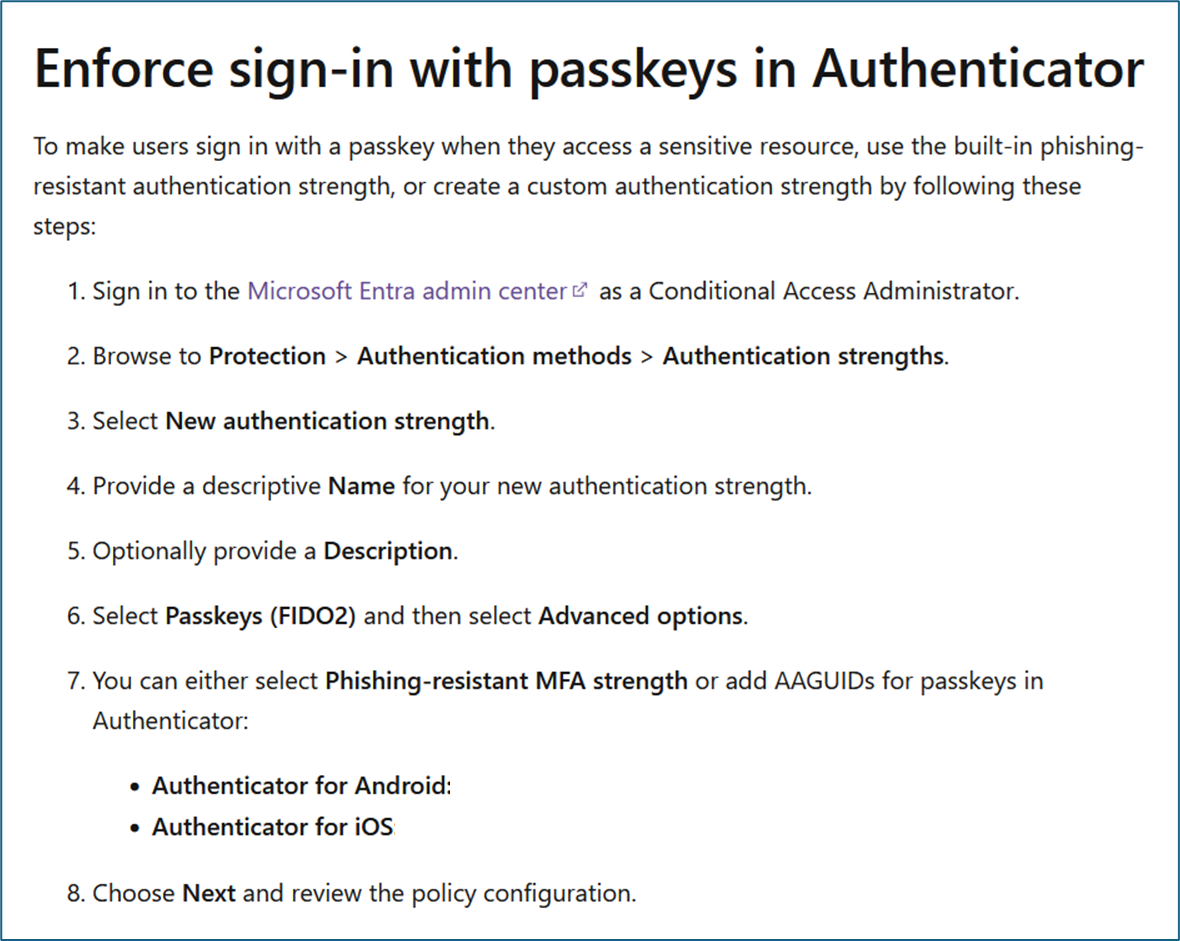
MS O365 Enable Passkey Functionality
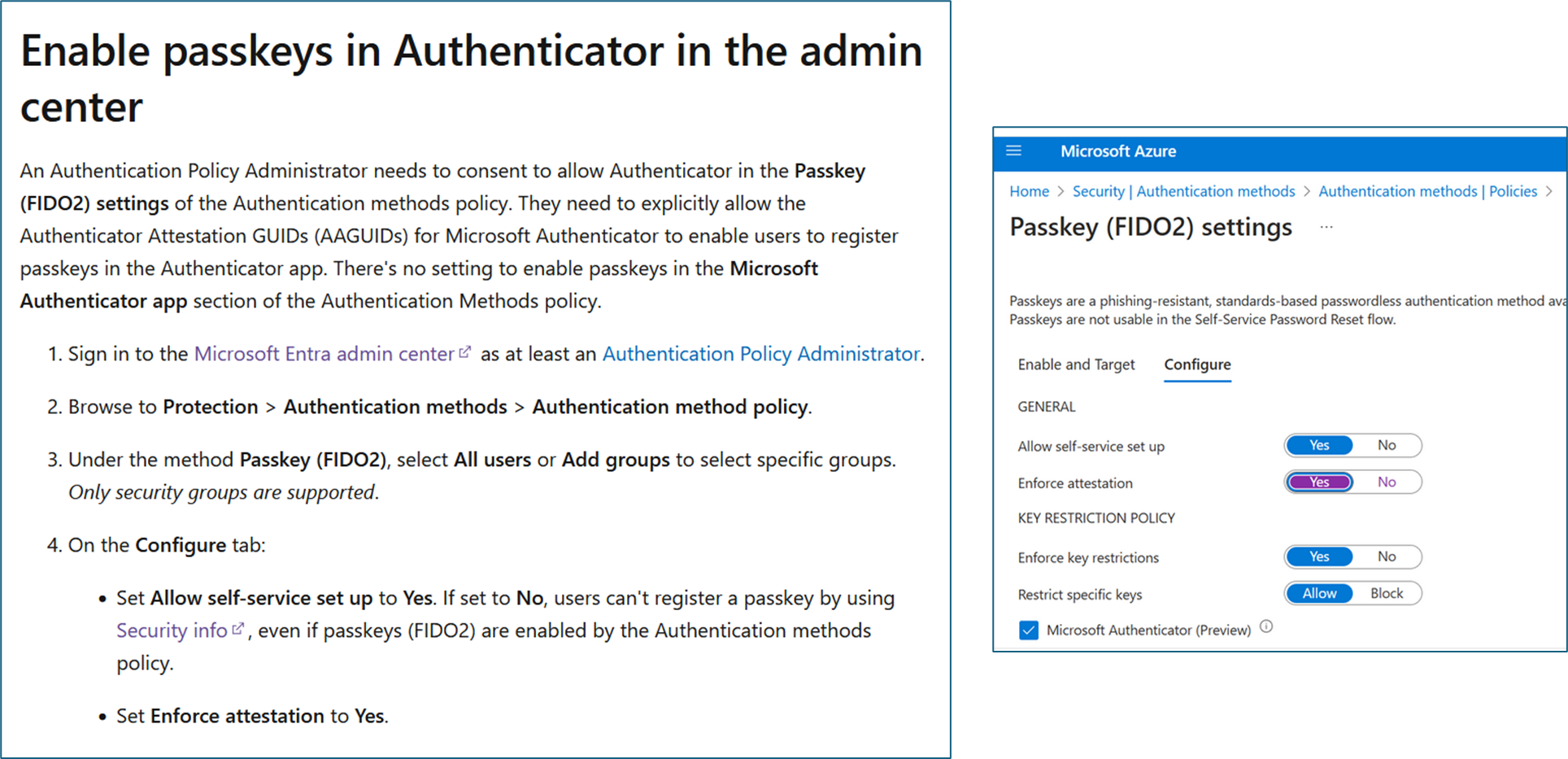
This was interesting from an administrative view. There was only one type of passkey functionality for MS O365, and it was buried within the MS Authenticator. Now it looks like there is native support as well.
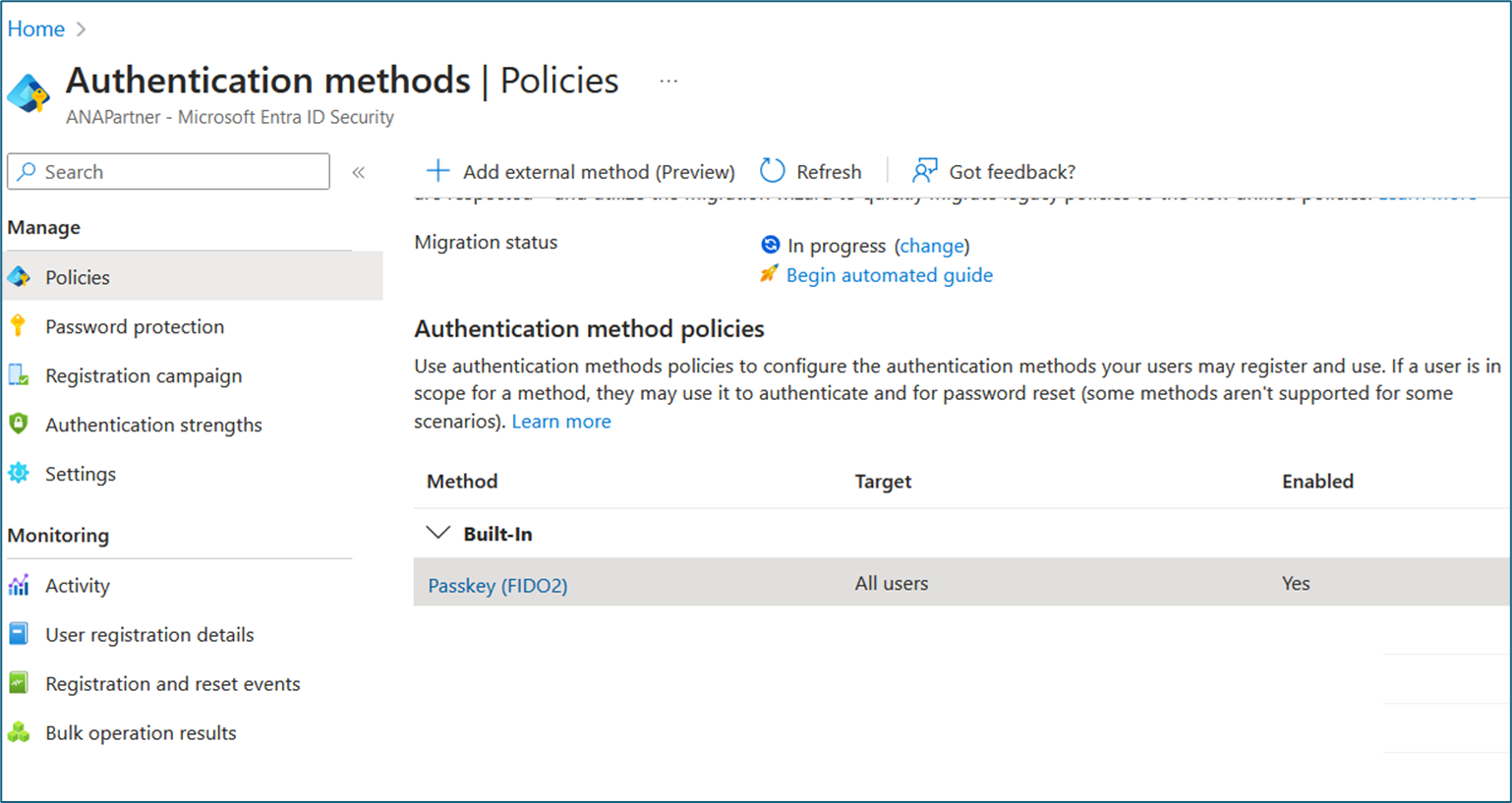
To enable Passkey (FIDO2) within O365, we had to go the admin console and enable four (4) switches.
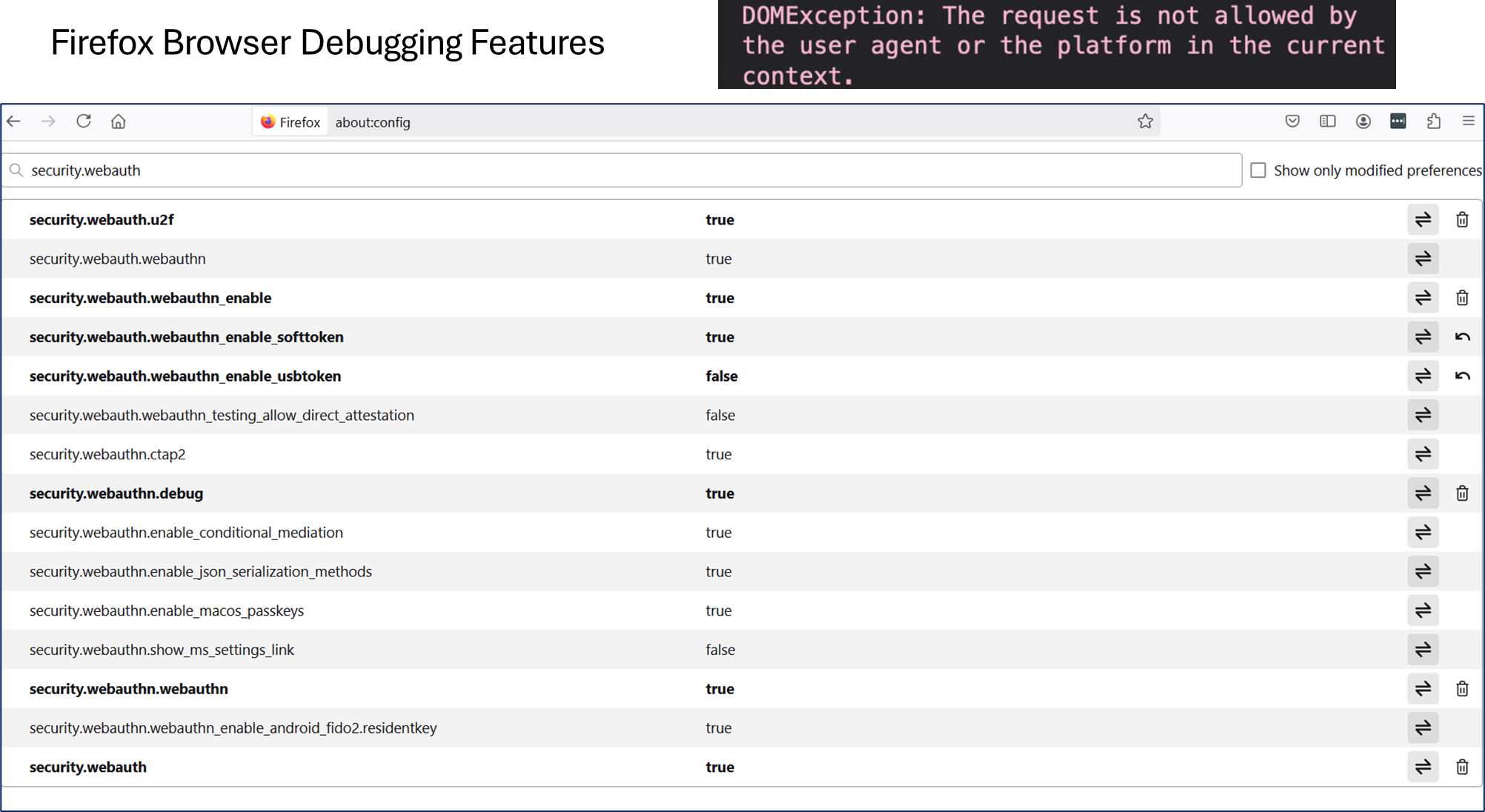
Firefox Browser Debugging
It is impressive to see many parameters for Firefox to help isolate an issue.
Passkey versus SSH Key Table
I wanted to compare the similarities and the differences between passkey architecture and ssh keys (used for many years). This table summarizes the distinctions and overlaps between passkeys (a modern, browser-driven standard for web authentication) and SSH keys (a traditional tool for server authentication). This may help others to see how the evolution has progressed from behind the scenes with servers to public use with browsers.

Specs to review
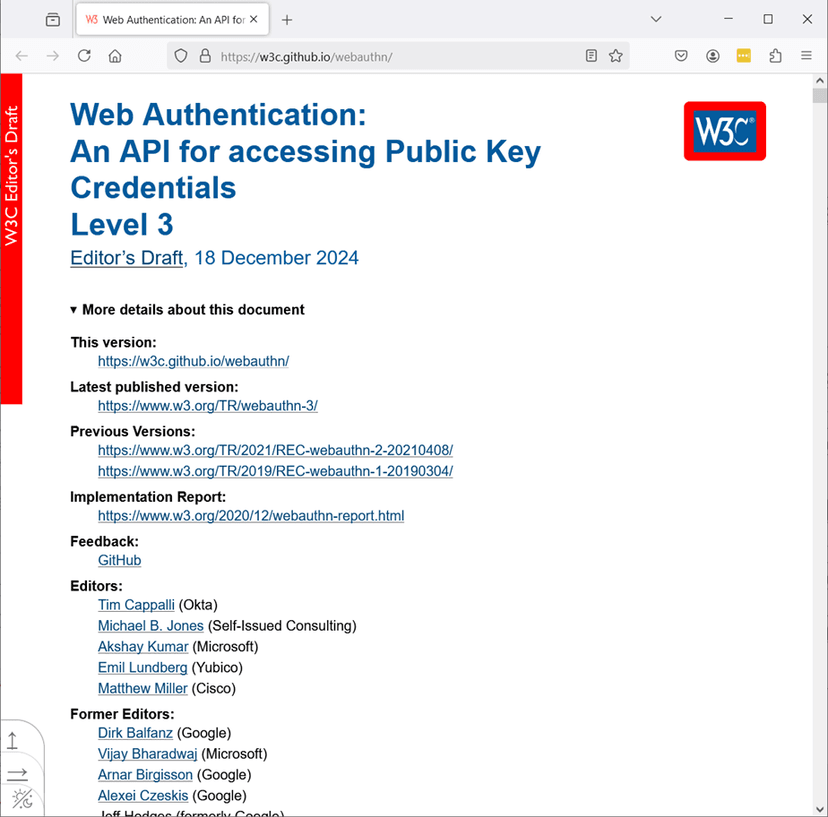
https://w3c.github.io/webauthn